Bit TV Tips That Will Improve Your Streaming Experience
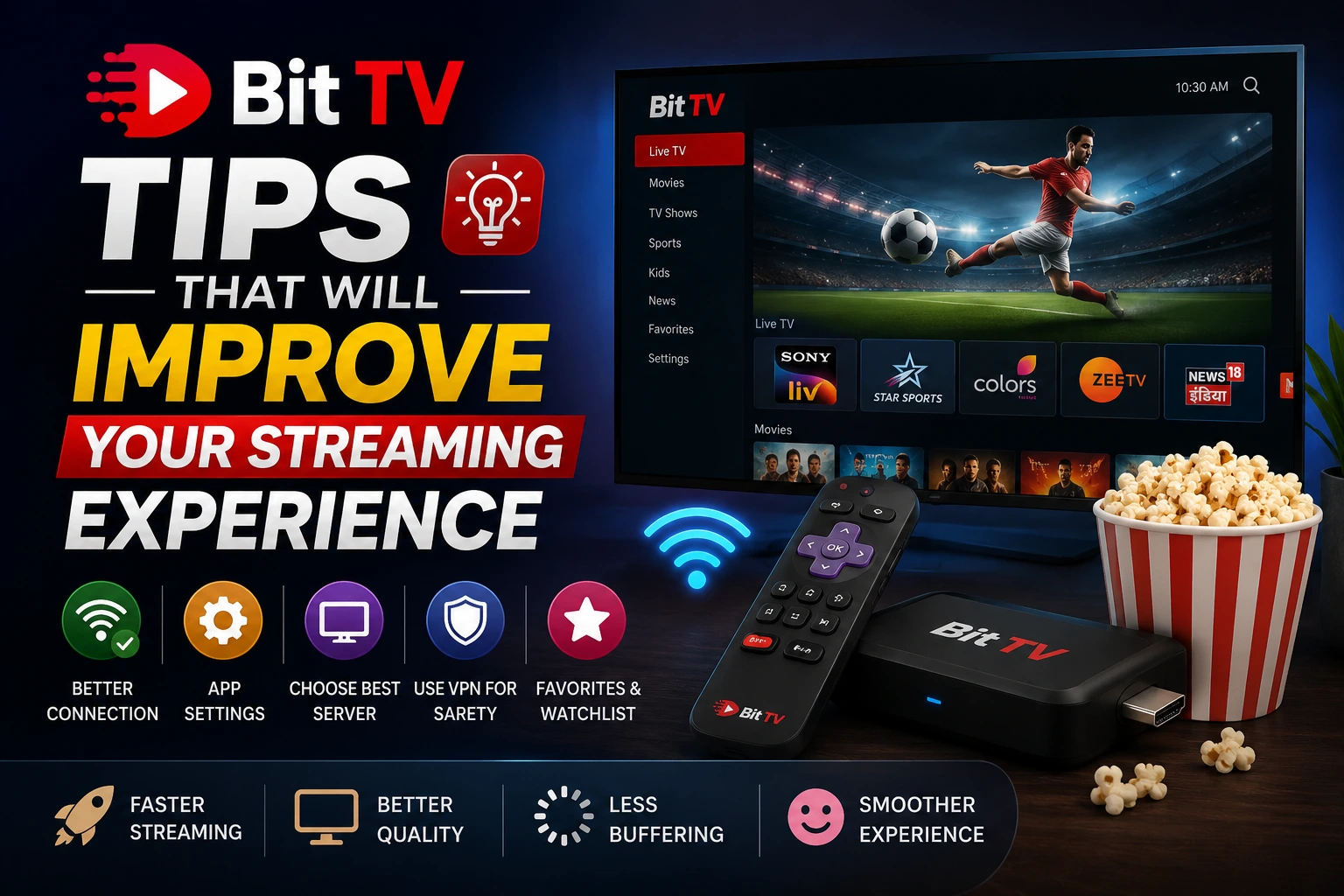
Streaming has become one of the easiest ways to enjoy live TV, sports, movies, and entertainment on any device. However, even the best streaming apps can occasionally suffer from buffering, poor video quality, or slow loading times if they aren’t used correctly.
If you’re a regular Bit TV user, a few simple adjustments can dramatically improve your viewing experience. From optimizing your internet connection to choosing the right video settings, these practical tips can help you enjoy smoother playback and fewer interruptions.
In this guide, we’ll share the most effective Bit TV tips that will help you stream faster, watch in better quality, and get the most out of the app.
Why Streaming Performance Matters
Nothing ruins an exciting football match or movie night more than constant buffering or freezing. A smooth streaming experience depends on several factors, including:
- Internet speed
- Device performance
- App settings
- Server availability
- Network congestion
Fortunately, many of these factors are under your control.
1. Use a Fast and Stable Internet Connection
Your internet connection has the biggest impact on streaming quality.
Recommended Internet Speeds
| Streaming Quality | Minimum Speed |
|---|---|
| SD (480p) | 5 Mbps |
| HD (720p) | 10 Mbps |
| Full HD (1080p) | 20 Mbps |
| 4K | 35 Mbps or higher |
For the best experience:
- Connect to Wi-Fi instead of mobile data whenever possible.
- Use a fiber or broadband connection.
- Keep other heavy downloads paused while streaming.
2. Switch to 5 GHz Wi-Fi
Many users still use the older 2.4 GHz Wi-Fi band.
The 5 GHz band offers:
- Faster speeds
- Lower latency
- Less interference
- Better HD streaming
If your router supports dual-band Wi-Fi, connect Bit TV devices to the 5 GHz network.
3. Keep Bit TV Updated
Developers frequently release updates that include:
- Bug fixes
- Performance improvements
- Better server optimization
- New streaming features
- Security enhancements
Always install the latest version of Bit TV for the best experience.
4. Restart the App Regularly
If Bit TV starts feeling slow:
- Close the app completely.
- Remove it from recent apps.
- Reopen it.
This clears temporary memory usage and often fixes playback issues.
5. Clear App Cache
Over time, cached files can become corrupted or excessively large.
Benefits of clearing cache:
- Faster loading
- Better responsiveness
- Reduced lag
- Fixes playback errors
On Android:
Settings → Apps → Bit TV → Storage → Clear Cache
Avoid clearing app data unless necessary, as it may remove saved settings.
6. Lower Video Quality During Slow Internet
If your connection becomes unstable, reduce the streaming quality.
Instead of:
- 1080p
Try:
- 720p
- 480p
A slightly lower resolution often eliminates buffering while maintaining a pleasant viewing experience.
7. Close Background Applications
Running many apps at once uses:
- RAM
- CPU
- Internet bandwidth
Before opening Bit TV:
- Close unnecessary apps.
- Stop large downloads.
- Pause cloud backups.
This gives Bit TV more system resources for smoother playback.
8. Restart Your Router
If buffering continues, your router may simply need a refresh.
Restarting your router:
- Clears temporary network issues.
- Improves connection stability.
- Refreshes your IP address.
- Reduces connection errors.
Power it off for about 30 seconds before turning it back on.
9. Watch During Off-Peak Hours
Streaming servers can become crowded during:
- Major football matches
- Cricket tournaments
- Weekend evenings
- Popular TV premieres
If possible, stream during less busy hours for a more stable experience.
10. Use Compatible Devices
Bit TV performs best on devices with modern hardware.
Older phones may experience:
- Slower loading
- Video lag
- Freezing
- App crashes
For the best results:
- Use newer Android devices.
- Keep your operating system updated.
- Ensure you have sufficient free storage.
11. Keep Your Device Cool
Overheating can reduce your device’s performance.
To prevent overheating:
- Remove bulky phone cases during long streaming sessions.
- Avoid direct sunlight.
- Close unused apps.
- Give the device breaks if it becomes too hot.
12. Enable Hardware Acceleration (If Available)
Some devices support hardware decoding, allowing video playback to be handled by the GPU instead of the CPU.
Advantages include:
- Smoother playback
- Lower battery usage
- Better HD performance
- Reduced lag
Check your device or player settings to see if this option is available.
13. Free Up Storage Space
A nearly full device can slow down app performance.
Delete:
- Old videos
- Duplicate photos
- Unused apps
- Large downloads
Keeping at least 10–20% of your storage free can help your device run more efficiently.
14. Disable Battery Saver While Streaming
Battery-saving modes often limit:
- Internet activity
- CPU performance
- Background processes
This can affect video playback.
For uninterrupted streaming, disable Battery Saver during your viewing session, especially if your device is plugged in.
15. Test Another Network
If Bit TV isn’t performing well, determine whether the issue is with your network.
Try:
- Another Wi-Fi connection
- Mobile hotspot
- Mobile data
If the app works better on a different network, your original internet connection is likely the problem.
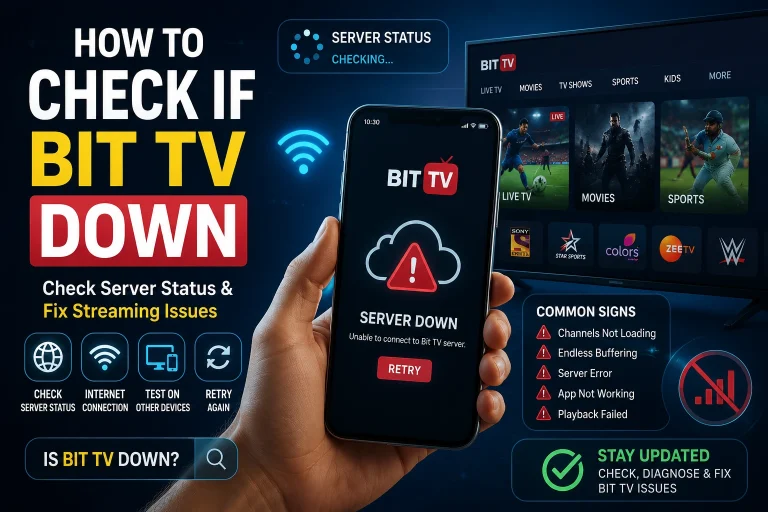
16. Check Bit TV Server Status
Sometimes the issue isn’t on your end.
Bit TV servers may experience:
- Scheduled maintenance
- Temporary outages
- Heavy traffic
- Technical issues
If many users are reporting problems, waiting a short while is often the best solution.
17. Reinstall Bit TV
If persistent issues remain:
- Uninstall Bit TV.
- Restart your device.
- Install the latest version.
- Sign back in if required.
A clean installation can resolve corrupted files or update-related issues.
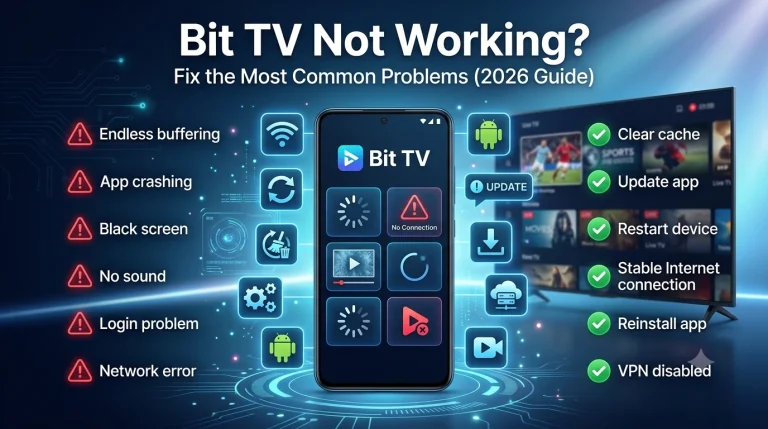
Common Streaming Problems and Quick Fixes
| Problem | Possible Solution |
|---|---|
| Buffering | Improve internet speed or lower video quality |
| App crashes | Update or reinstall Bit TV |
| Black screen | Restart the app or device |
| Audio but no video | Clear cache or restart the stream |
| Slow loading | Close background apps and restart your router |
| Frequent freezing | Use a stronger Wi-Fi signal or move closer to the router |
Bonus Bit TV Tips for the Best Bit TV Experience
For consistently smooth streaming:
- Restart your device once a week.
- Keep Bit TV updated.
- Use a reliable Wi-Fi connection.
- Clear cache periodically.
- Avoid downloading large files while streaming.
- Keep your operating system up to date.
- Use high-quality routers for better coverage.
- Maintain enough free storage space.
Frequently Asked Questions
Why does Bit TV keep buffering?
Buffering is usually caused by a slow internet connection, network congestion, weak Wi-Fi, or high server traffic. Improving your connection and lowering the video quality can often resolve the issue.
Does clearing the cache improve Bit TV performance?
Yes. Clearing the cache removes temporary files that may slow the app, resulting in faster loading and smoother playback.
Is Wi-Fi better than mobile data for Bit TV?
In most cases, a stable Wi-Fi connection provides more consistent speeds and fewer interruptions than mobile data, especially for HD streaming.
Should I always stream in Full HD?
Not necessarily. If your internet connection is unstable, choosing 720p or 480p can provide a smoother viewing experience with less buffering.
Does reinstalling Bit TV fix common issues?
Yes. Reinstalling the app can resolve problems caused by corrupted files, outdated versions, or incomplete updates.
Final Thoughts
Getting the best experience from Bit TV doesn’t require expensive equipment or advanced technical knowledge. Small improvements—such as using a stable internet connection, clearing the app cache, keeping the app updated, and selecting the appropriate video quality—can significantly enhance streaming performance.
By following these tips, you’ll reduce buffering, improve video quality, and enjoy a more reliable viewing experience whether you’re watching live sports, movies, or your favorite TV channels. Regular maintenance of both your device and the app will ensure Bit TV continues to perform at its best.