Bit TV Not Working? Here’s How to Fix the Most Common Problems (2026 Guide)
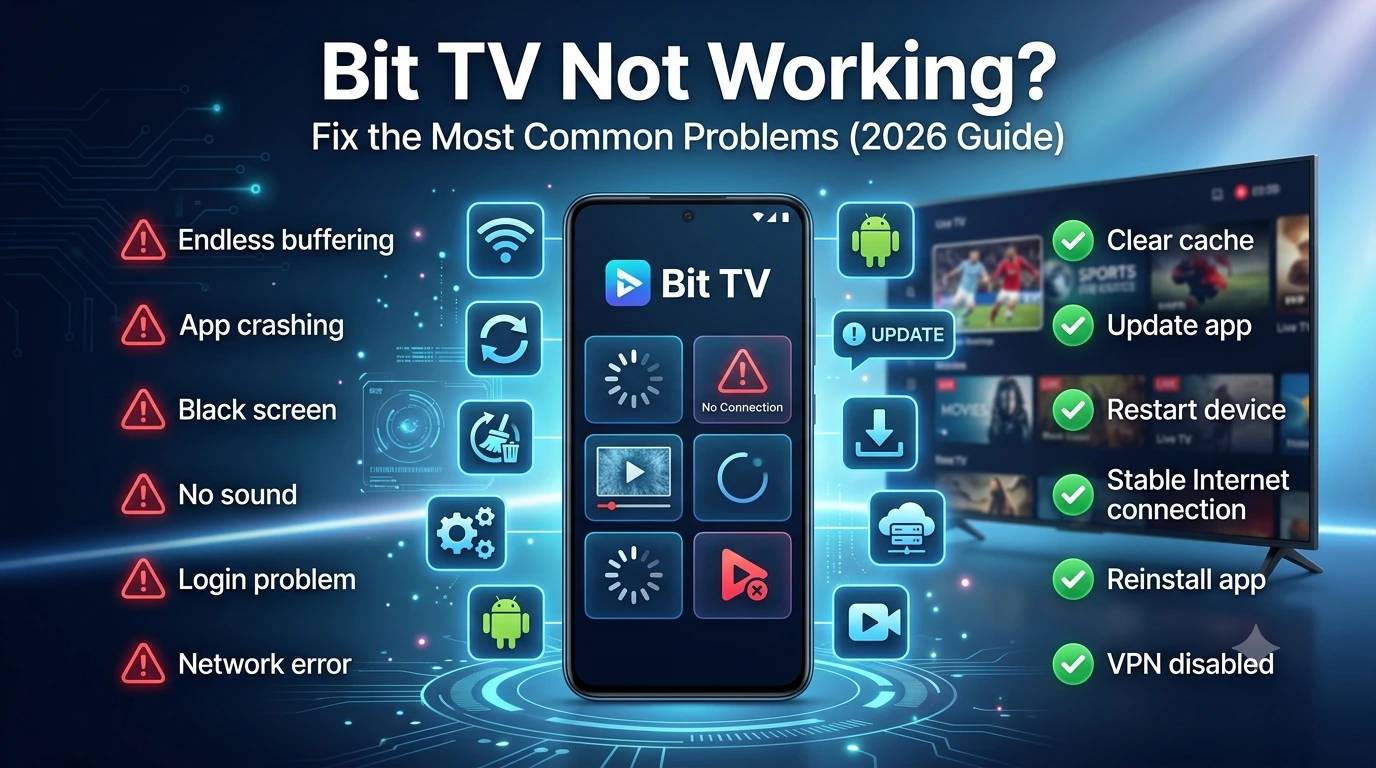
Bit TV Not Working? Here’s How to Fix the Most Common Problems
Bit TV has become one of the most popular free streaming apps for watching live TV, sports, movies, TV shows, and entertainment channels without paying expensive subscription fees. However, like any streaming application, Bit TV can occasionally run into issues.
If your Bit TV app is not opening, keeps buffering, crashes unexpectedly, or refuses to play channels, don’t worry. Most problems can be solved in just a few minutes.
In this comprehensive guide, we’ll explain the most common Bit TV problems, why they happen, and the best ways to fix them.
Why Is Bit TV Not Working?
There isn’t a single reason why Bit TV may stop working. Usually, the issue falls into one of these categories:
- Slow or unstable internet connection
- Outdated Bit TV version
- Corrupted app cache
- Device compatibility issues
- Server maintenance
- Regional restrictions
- Low storage space
- Software bugs
Fortunately, most of these issues have simple solutions.
1. Bit TV Won’t Open
Symptoms
- App closes immediately
- Black screen appears
- App keeps loading forever
- Stuck on logo screen
How to Fix It
Restart Your Device
Sometimes a simple reboot clears temporary system glitches.
Force Stop the App
Android
Settings → Apps → Bit TV → Force Stop
Then reopen the app.
Clear App Cache
Cached files can become corrupted over time.
Go to:
Settings → Apps → Bit TV → Storage
Tap:
- Clear Cache
Restart the app afterward.
2. Bit TV Keeps Buffering
Buffering is the most common complaint among streaming users.
Possible Causes
- Weak Wi-Fi signal
- Slow internet speed
- Heavy network traffic
- Streaming in HD on a slow connection
Solutions
Check Internet Speed
A stable connection of at least:
- 5 Mbps for SD
- 10 Mbps for HD
- 25 Mbps for Full HD
is recommended.
Restart Your Router
Turn it off for 30 seconds before reconnecting.
Lower Video Quality
If available, switch from HD to SD to reduce buffering.
Close Background Apps
Other downloads or streaming services may be consuming bandwidth.
3. No Channels Are Showing
Sometimes the Bit TV app opens normally, but no content appears.
Possible Reasons
- Server maintenance
- Temporary outage
- Poor internet connection
- Regional restrictions
Solutions
- Refresh the app
- Restart Bit TV
- Check your internet
- Wait for servers to recover
- Update to the latest version
4. Bit TV Crashes Repeatedly
If the app keeps crashing after launch, the problem is often related to your device.
Try These Fixes
Update the App
Older versions may contain bugs that have already been fixed.
Update Android
Running an outdated operating system may cause compatibility issues.
Free Up Storage
Bit TV performs better when your device has enough free space.
Delete:
- Unused apps
- Old downloads
- Large videos
Aim to keep at least 2 GB of free storage.
5. Video Plays but There’s No Sound
Sometimes the picture works perfectly, but audio doesn’t.
Fixes
- Increase device volume
- Disconnect Bluetooth headphones
- Restart the app
- Restart the phone
- Try another channel
If only one channel has no sound, the issue is likely with that particular stream.
6. Black Screen During Playback
A black screen usually indicates a playback issue.
Solutions
- Refresh the stream
- Switch to another channel
- Restart Bit TV
- Clear cache
- Reinstall the application
7. Bit TV not Working on Fire TV Stick
Fire TV users occasionally experience installation or playback issues.
Fixes
Enable Unknown Sources
If sideloading:
Settings → My Fire TV → Developer Options
Enable:
- Install Unknown Apps
Reinstall Bit TV
Download the latest APK and install it again.
8. Bit TV not Working on Android TV
Some Android TV models require additional permissions.
Check:
- Storage permission
- Internet permission
Also ensure the TV software is fully updated.
9. Bit TV APK Won’t Install
Possible reasons include:
- Corrupted APK file
- Insufficient storage
- Unsupported Android version
- Unknown Sources disabled
Solution
Download the APK again from a trusted source and ensure installation from unknown sources is enabled.
10. Login Problems
If Bit TV requires sign-in and login isn’t working:
Try These Steps
- Double-check your credentials
- Restart the app
- Clear app data
- Reset your password if available
- Reinstall the app
11. “Network Error” Message
This usually indicates a connection issue.
Fixes
- Switch between Wi-Fi and mobile data
- Restart your modem
- Disable battery saver
- Turn off VPN if it’s causing conflicts
- Restart your device
12. Bit TV Shows “Playback Failed”
This message often appears when a video source is temporarily unavailable.
Solutions
- Refresh the stream
- Choose another server if available
- Wait a few minutes
- Restart the application
When Should You Reinstall Bit TV?
Reinstalling should be your last option.
Do it if:
- The app won’t open
- Frequent crashes continue
- Updates fail
- Files become corrupted
- Nothing else fixes the problem
Before reinstalling:
- Remove the app completely
- Restart your device
- Install the latest version
Tips to Prevent Future Problems
To keep Bit TV running smoothly:
- Always use the latest version.
- Clear the app cache regularly.
- Keep your Android device updated.
- Use a stable internet connection.
- Avoid running too many apps simultaneously.
- Restart your device occasionally.
- Maintain sufficient free storage.
These simple habits can significantly reduce performance issues.
Frequently Asked Questions (FAQs)
Why is Bit TV buffering all the time?
Buffering is usually caused by slow internet, network congestion, or streaming at a quality higher than your connection can handle. Lowering the video quality and improving your internet speed often resolves the issue.
Why won’t Bit TV open?
The app may have corrupted cache files, software bugs, or compatibility issues. Force stopping the app, clearing the cache, or reinstalling the latest version generally fixes the problem.
Is Bit TV server down?
Occasionally, Bit TV servers may undergo maintenance or experience temporary outages. If multiple users report the same issue, waiting a while and trying again is often the best solution.
Should I reinstall Bit TV?
Yes, if clearing the cache, restarting your device, and updating the app don’t resolve the issue, reinstalling Bit TV is a good next step.
Does Bit TV work on Android TV and Fire TV?
Yes. Bit TV supports many Android TVs and Fire TV devices. Ensure your device software is up to date and that you’ve installed the latest compatible version of the app.
Final Thoughts
Most Bit TV issues—whether it’s buffering, crashes, loading errors, or playback failures—can be fixed with a few simple troubleshooting steps. Keeping the app updated, maintaining a stable internet connection, and clearing the cache regularly will help ensure a smooth streaming experience.
If you’ve tried all the solutions in this guide and Bit TV still isn’t working, the problem may be due to a temporary server issue or a device-specific compatibility problem. In such cases, waiting for an app update or checking the official Bit TV support channels for announcements is recommended.